Writing /
Analysing competitor site structure at scale
7 min read
Two quick ways to map a large competitor's site structure, from its URL directories or scraped breadcrumbs, and use it to prioritise your SEO.
Choosing your website’s structure can be difficult. Card sorting and user interviews can help, but you may still be stuck trying to decide on the best approach.
Analysing competitors’ sites can provide inspiration for what works. If the competitor’s site is small, you can inspect it manually. But for large sites with 100,000s or millions of pages, you need a more scalable approach.
This article outlines two quick and easy ways to gather competitor structure data and how you can use that to prioritise your SEO strategy.
#1 Use your competitor’s URL structure
Using URL directories to indicate how content has been organised is a common practice among websites. You can use this to gather data on your competitor’s structure quickly. You only need a list of their URLs and a simple formula in Google Sheets.
Collecting competitor URLs
You can get the list of your competitor’s URLs by crawling their site using Screaming Frog or Sitebulb. But be careful not to get blocked by their firewall. Alternatively, use a tool like Ahrefs. Ahrefs has data on which URLs are ranking in search results, and your competitor can’t stop you from getting this information.
For example, John Lewis, a popular UK e-commerce store, has a pretty aggressive firewall. The site is large - about 250,000 URLs - so scraping it won’t be easy. Instead, go to Ahrefs Site Explorer, search for their domain, and then view the ‘Top Pages’ report.
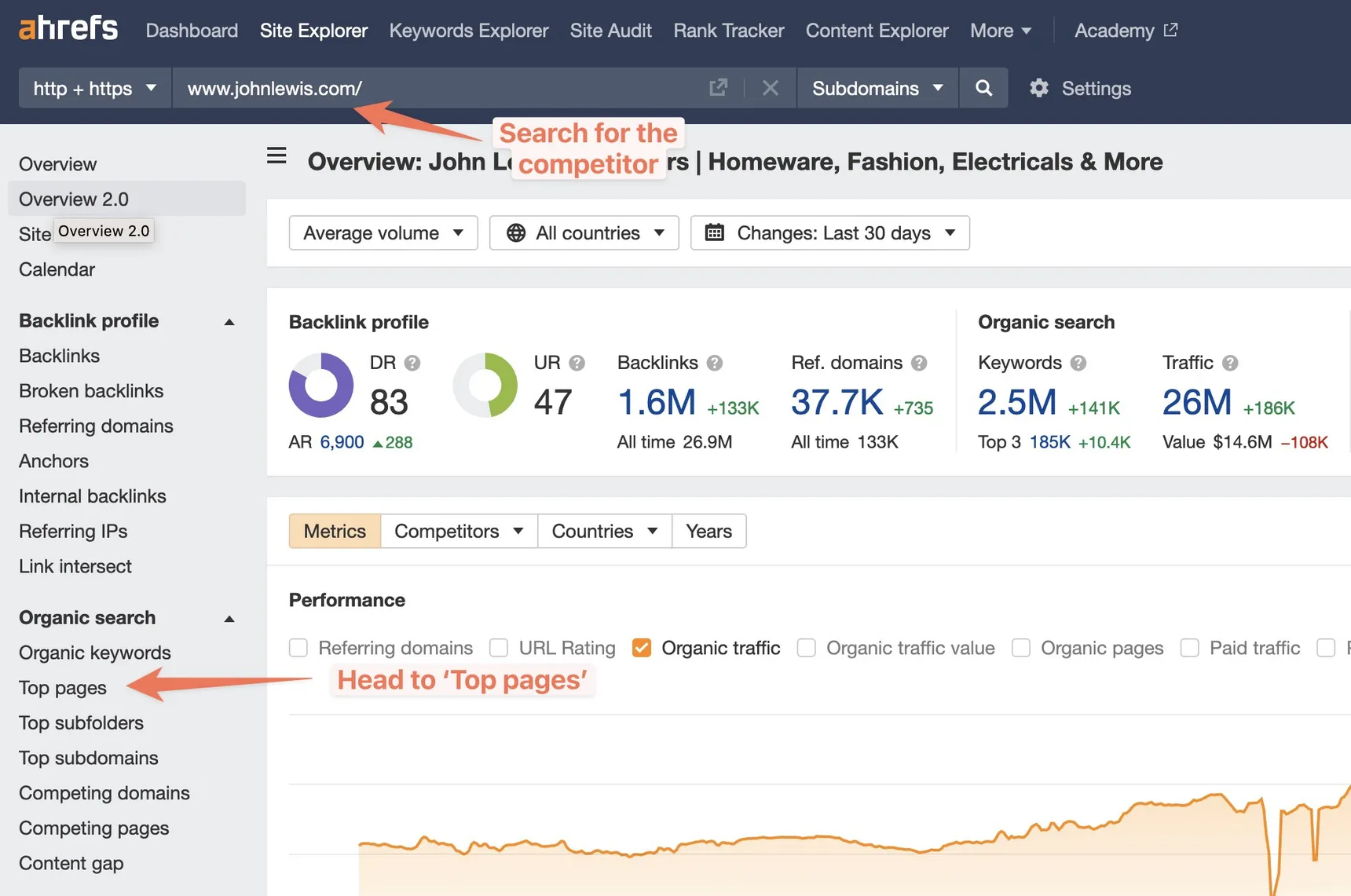
Now export the report (make sure you don’t have a date comparison set).
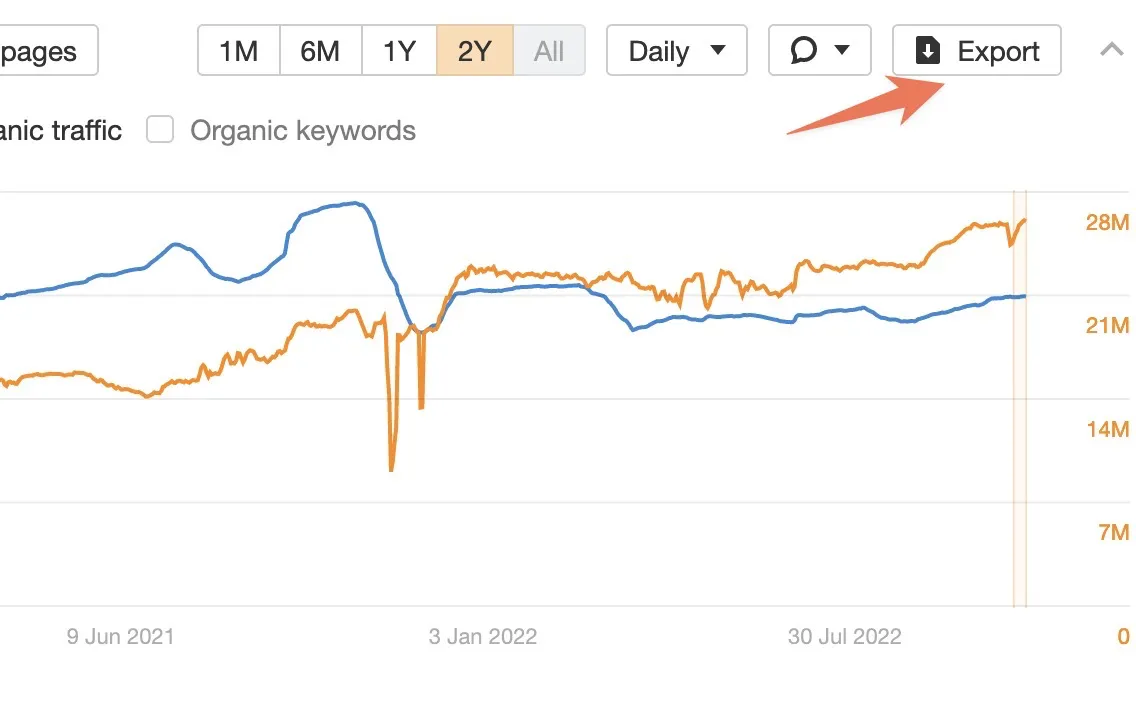
Open the file in Google Sheets. You can delete unnecessary columns. I’m deleting columns E-H.
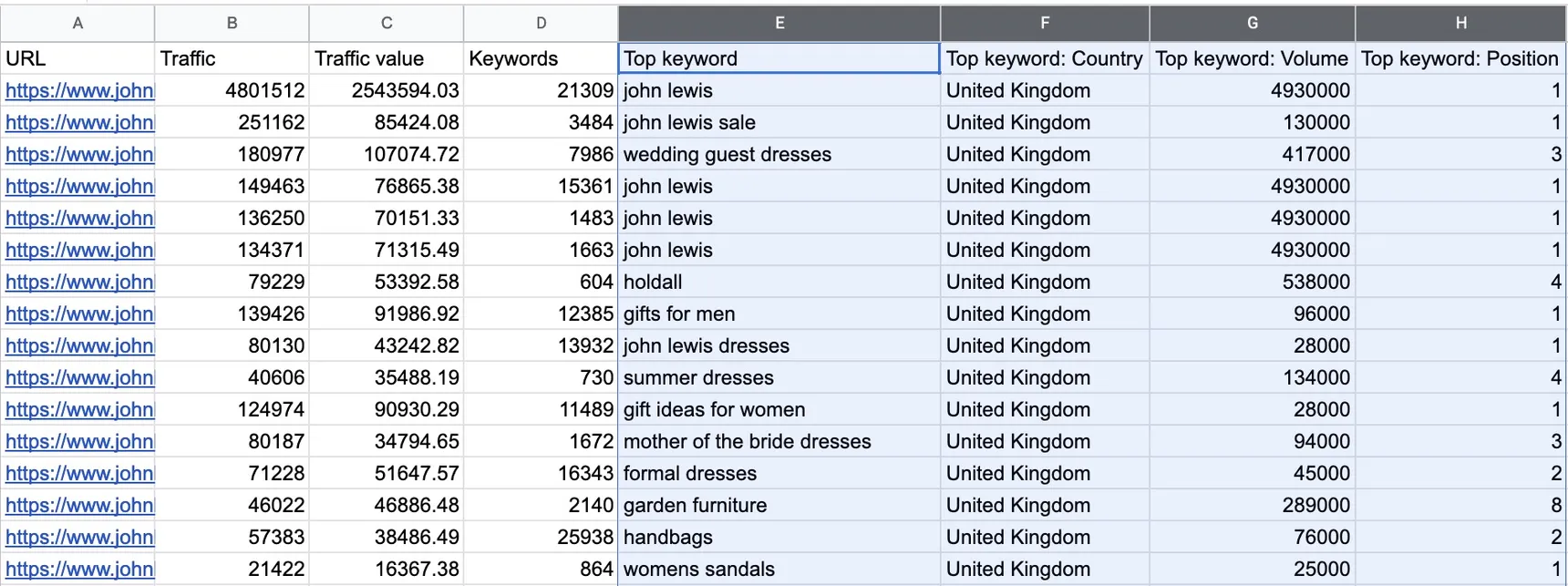
As simple as that, I’ve gathered a competitor’s URLs alongside data on how much traffic each URL has acquired.
Extract URL directories in Google Sheets
The next step is to add a column for each URL directory you want to extract. Then add a formula in the cell below each column header that looks like this:
=ArrayFormula(IF(ISBLANK(A2:A),,INDEX(SPLIT(REGEXREPLACE(A2:A,"https://www.johnlewis.com",""),"/"),,1)))Replace ‘https://www.johnlewis.com’ with the root domain of the website you are analysing. Do not include the trailing slash. In the formula, replace the ‘1’ at the end with the directory you want to extract. To extract multiple directories, copy the formula and increase the number. My sheet now looks like this:
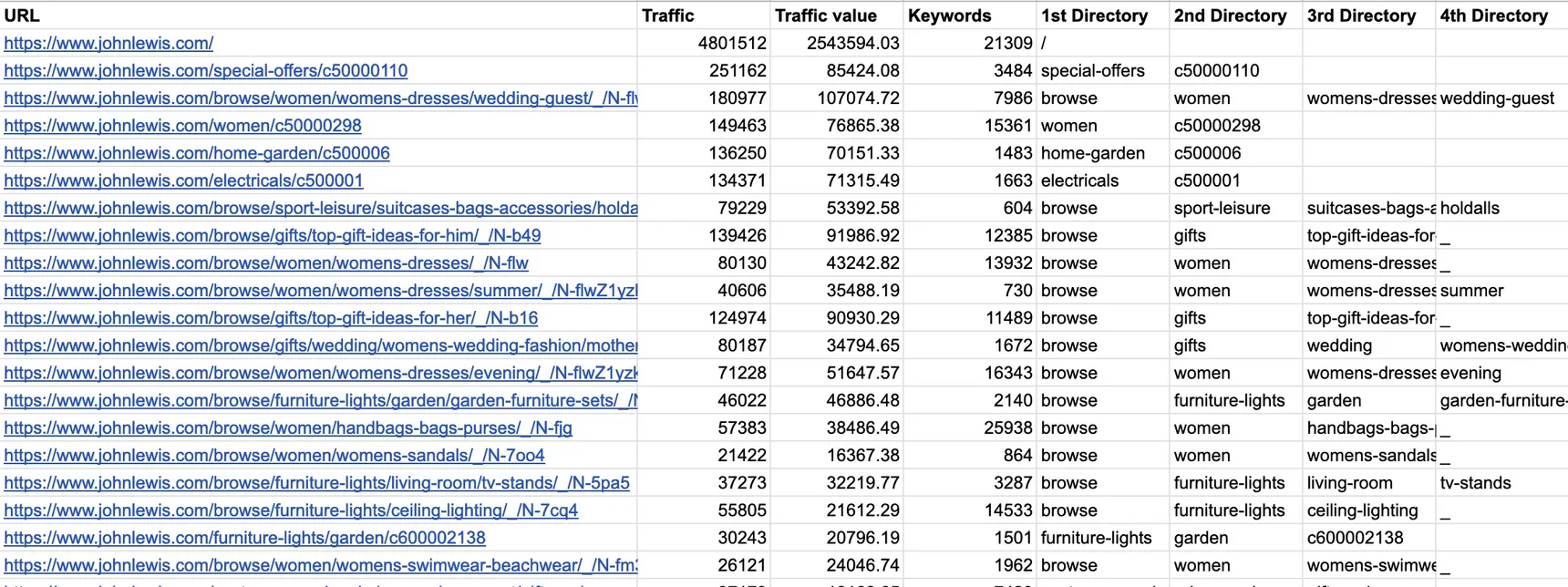
At this point, depending on the URL structure of the competitor, you may be done with your analysis and have a clear overview of the organisation of their site.
John Lewis has a few peculiarities in their URLs. For example:
- They add a number/letter identifier at the end of a URL, such as ‘c50000211’.
- They sometimes include a ‘/browse/’ directory for categories, which does not help understand the structure.
- Additionally, they sometimes have a ‘/__/’ directory.
To account for this, I have revised the formulas’ regex rule to remove this information.
=ArrayFormula(IF(ISBLANK(A2:A),,INDEX(SPLIT(REGEXREPLACE(A2:A,"https://www.johnlewis.com|browse/|/_|/[^/]+$",""),"/"),,1)))Now, the data in the sheet looks much cleaner
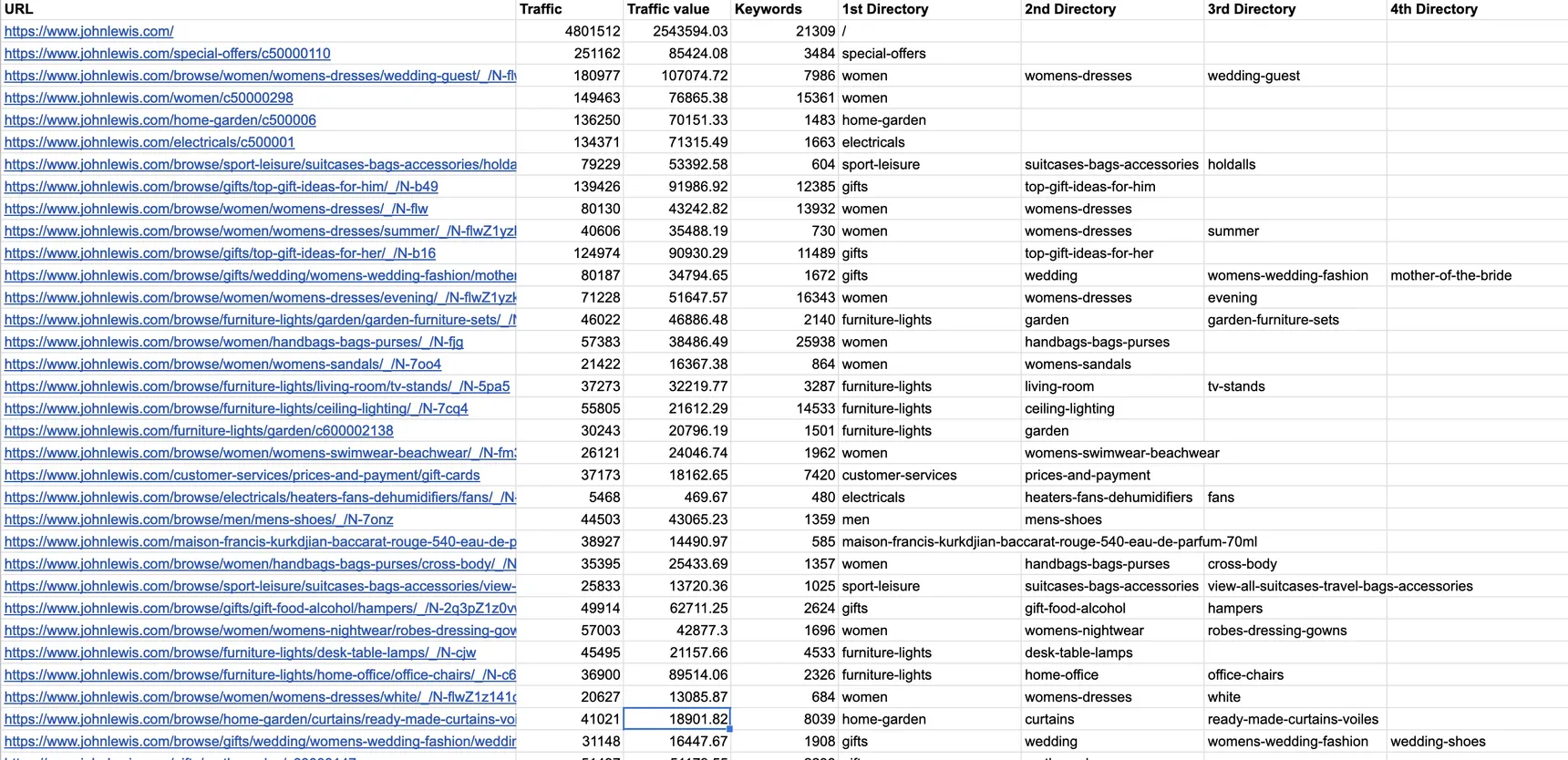
I now have competitive data on how a huge ecom brand organises its content and can use it to inspire my own site structure.
#2 Scrape your competitor’s breadcrumbs
If your competitors’ URLs don’t provide the structure data you need, you can scrape their breadcrumbs. But this is only worth doing if the URL structure won’t work. Crawling large sites takes time, and you can get blocked. It’s a good option for smaller sites without an aggressive firewall.
Here’s how to do this by using Sitebulb.
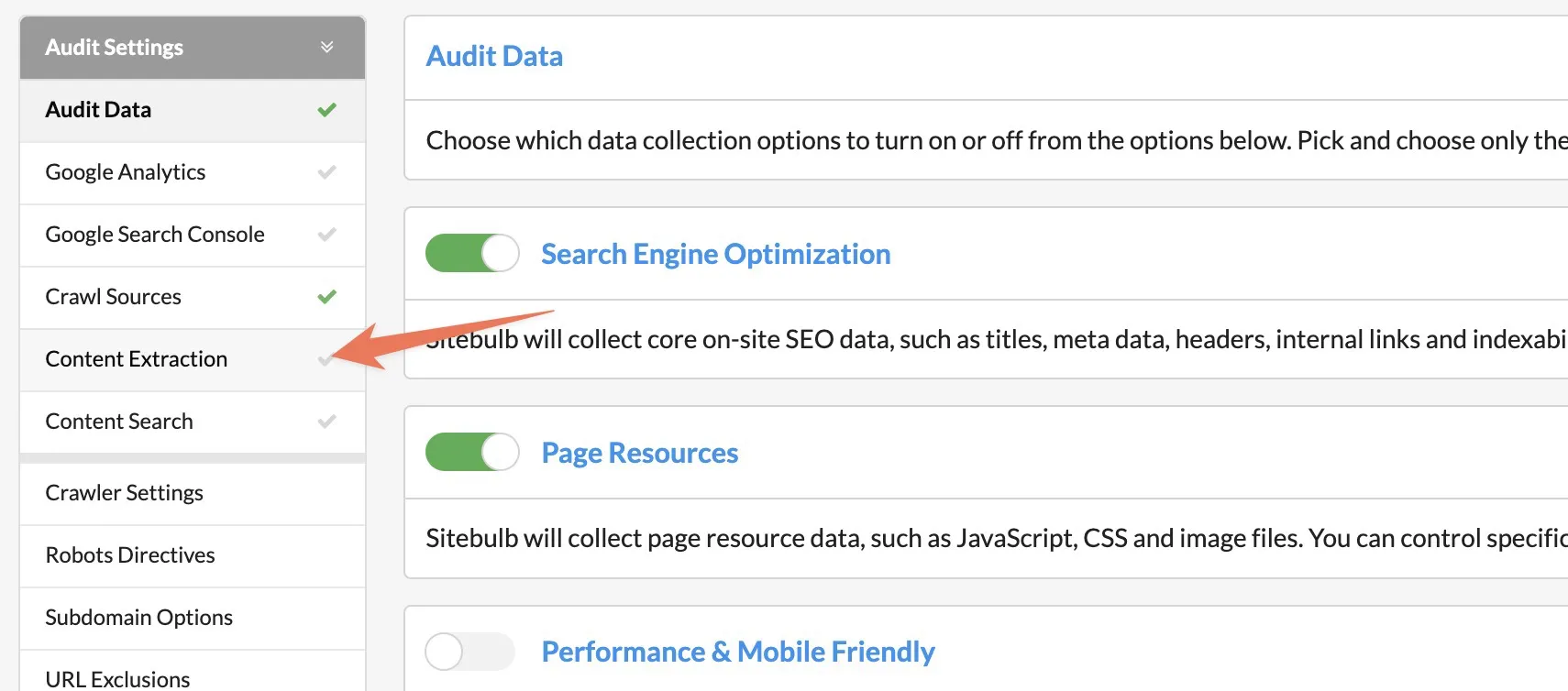
First, set up your project as normal and head to the sidebar’s content extraction area.
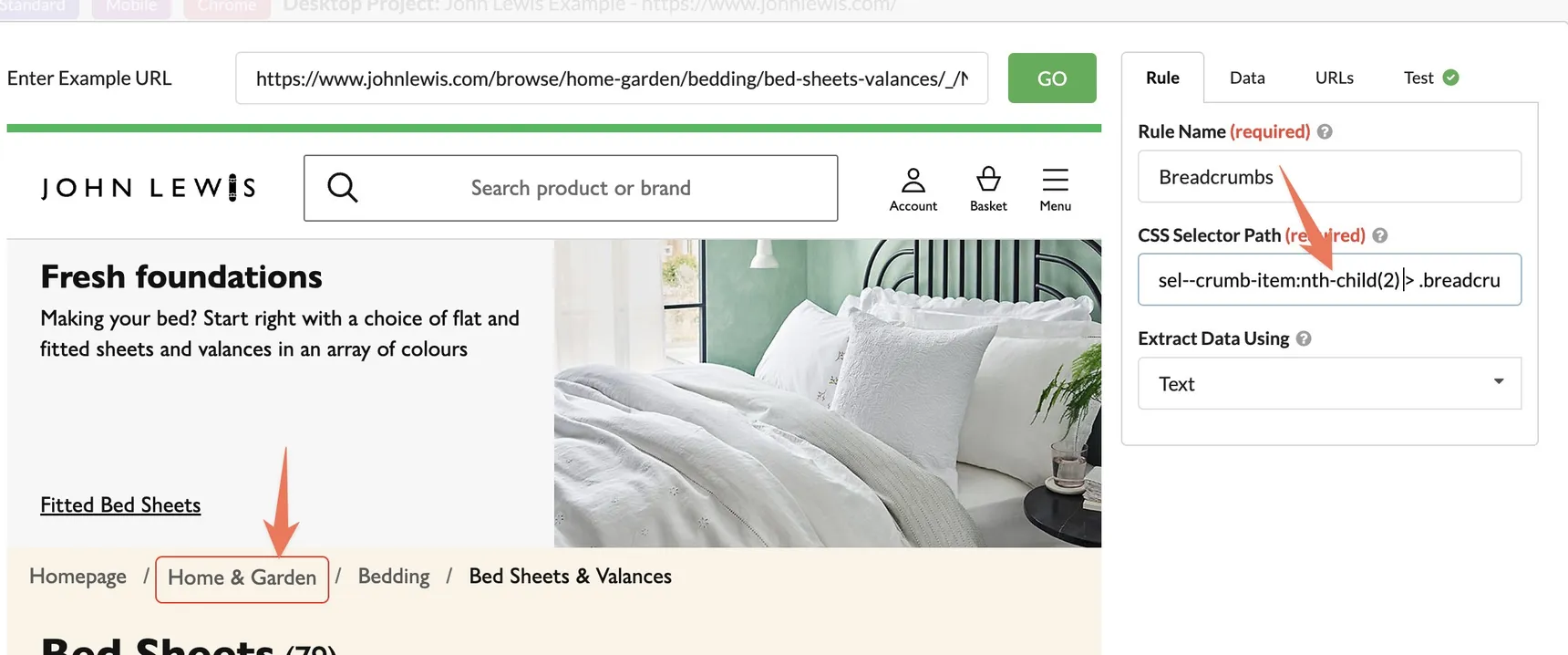
Enter an example URL in the content extraction modal. Select the breadcrumbs in the preview. Sitebulb will then automatically populate the CSS rule.
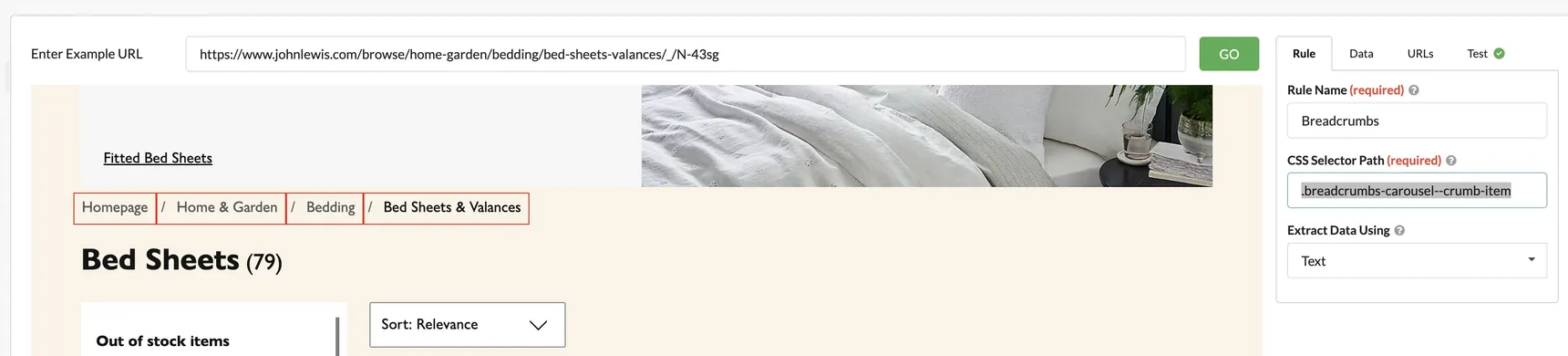
As you can see below, when I’ve done this, Sitebulb has only selected the second breadcrumb item. To change the selector to extract all breadcrumbs, remove some of the nth-child rules, and any child elements, so the selector is only for the breadcrumb item.
My rule is now .breadcrumbs-carousel--crumb-item , and all four breadcrumb items have been selected.
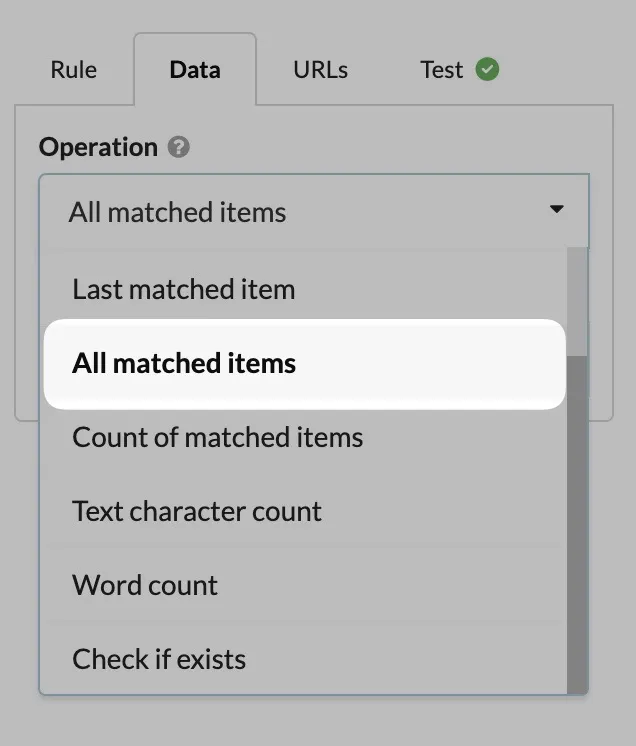
By default, Sitebulb will only return the first matched item when a CSS selector matches multiple elements. To see this happening, go to the ‘Test’ tab in the right sidebar. To change that to get all breadcrumb items, go to ‘Data’ and change it to return ‘All matched items’.
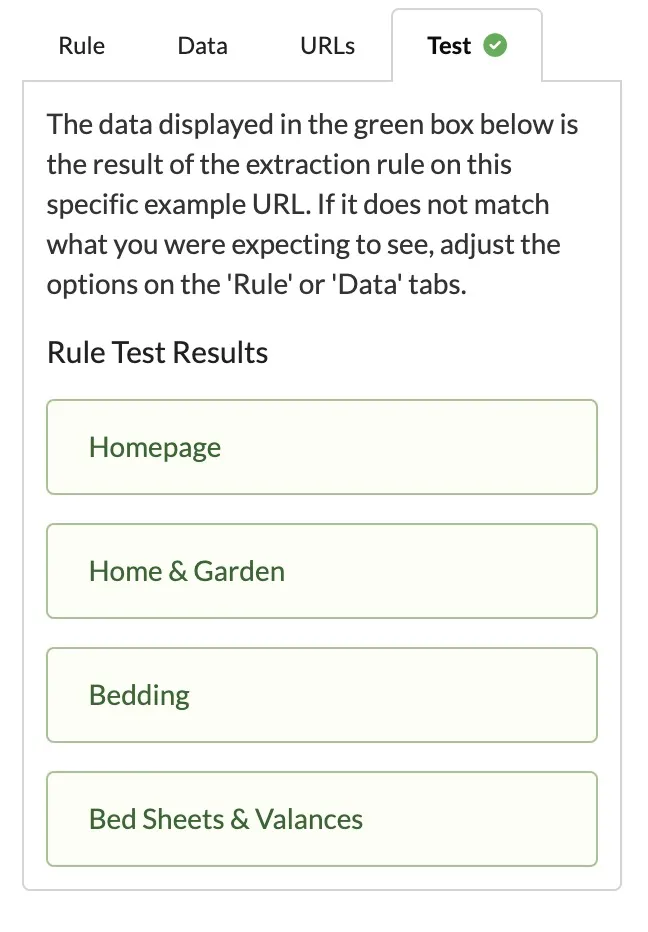
In the test tab, you will now see it’s returning all the breadcrumb items, success!
Now, save your settings, and start your crawl (at a slow crawl speed if there is a firewall).
Once the crawl is finished, you’ll want to export the results by heading to content extraction in the left sidebar and then exporting to Google Sheets.
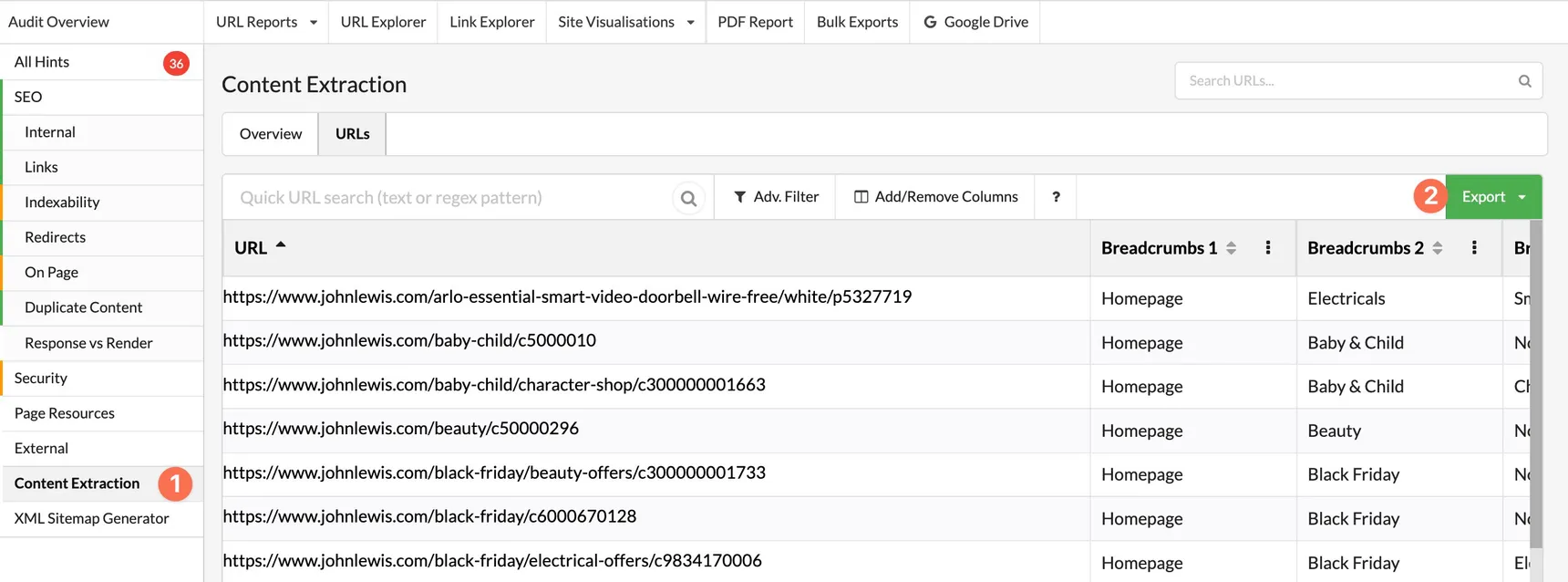
You’ve now successfully scraped your competitor’s breadcrumbs and can use them to inspire your site structure.
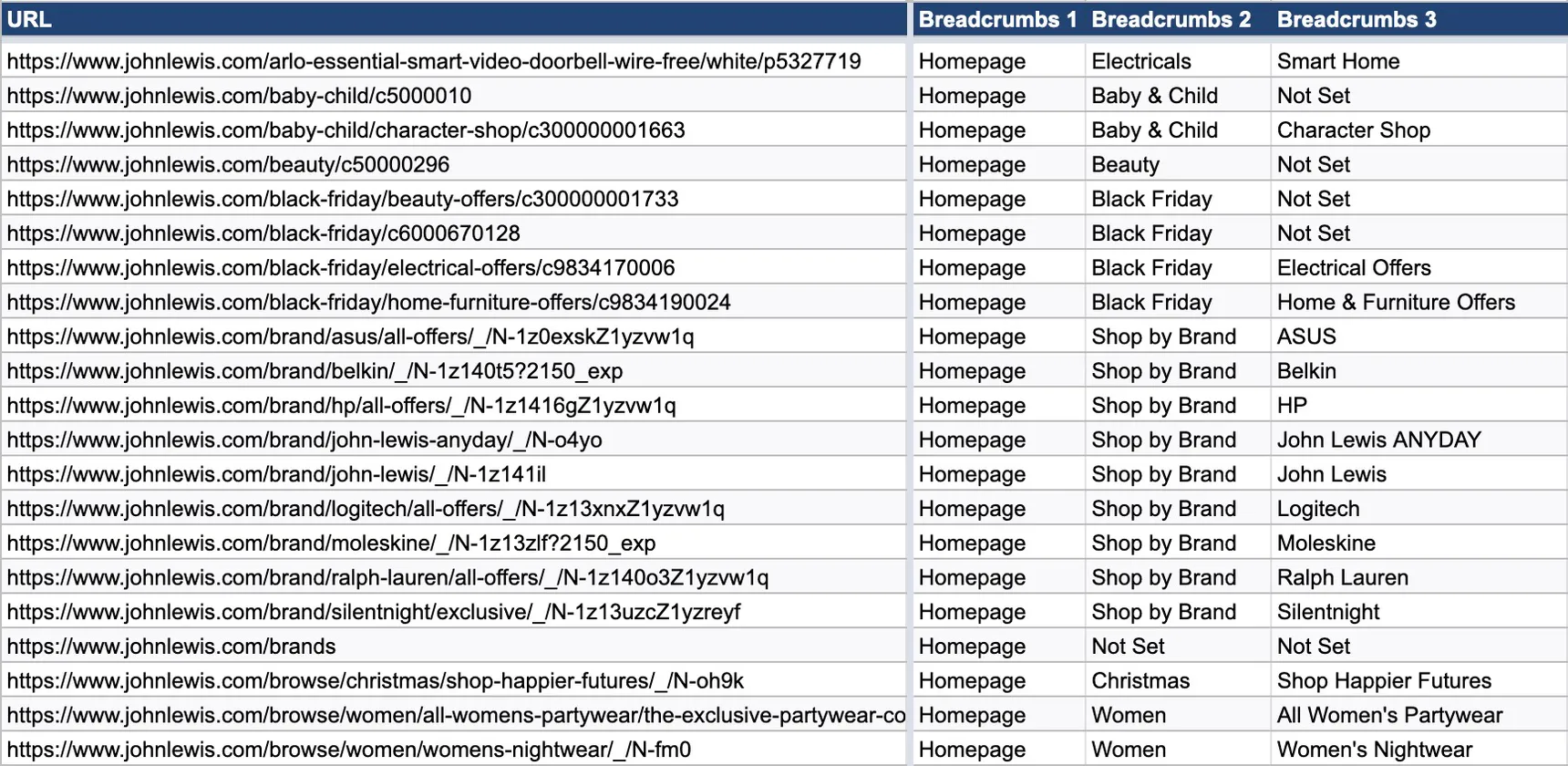
Analysing site structure
I’ve discussed how this data can help you structure your website. But there are other uses too. Matching this data on structure with performance data can help you understand which areas of your competitor’s website draw the most traffic.
Many competitor analysis tools offer this feature. Ahrefs’ new report is my favourite implementation. However, this report is only useful if the competitor has structured URLs. If they don’t, the report is less helpful.
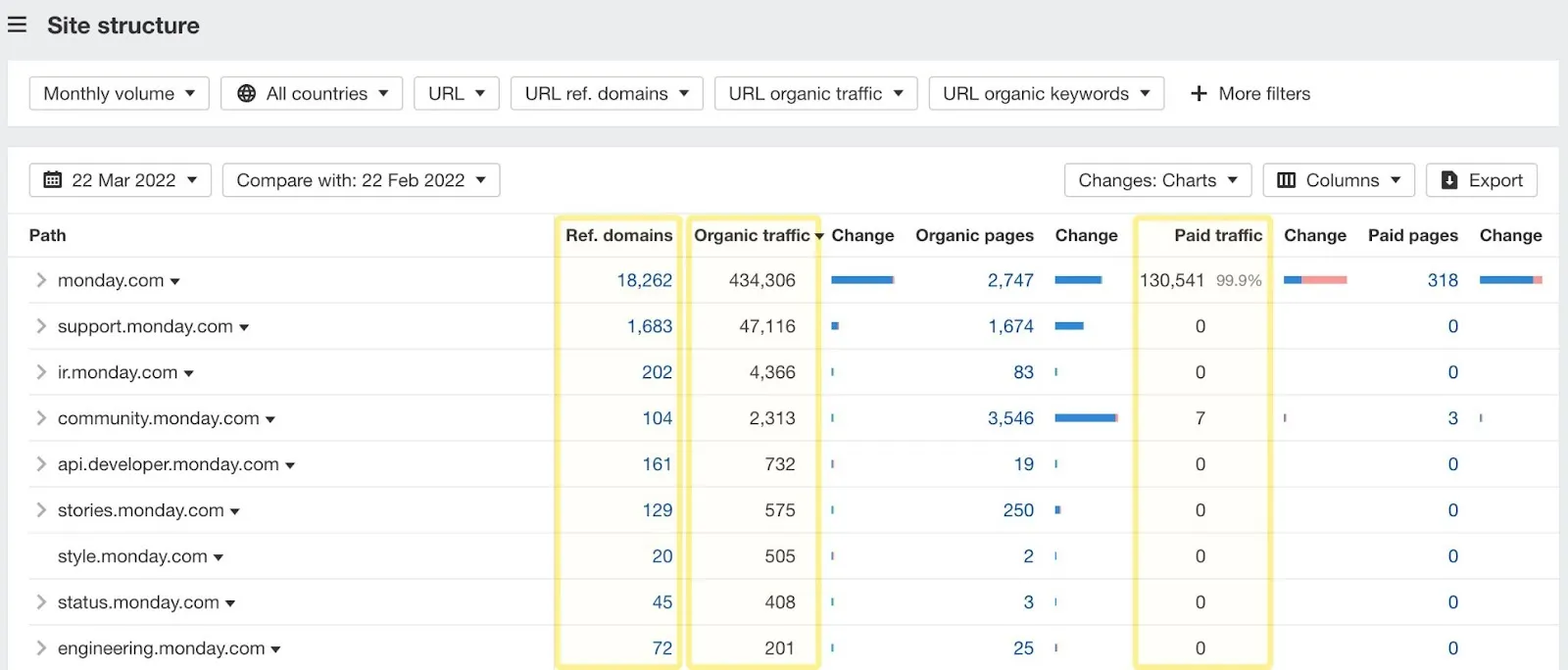
We’re now going to re-create this report, with the added benefit of it being based on either the URL structure or the breadcrumbs—and it’s really simple.
First, select either your breadcrumb or the URL data you extracted earlier. Now pivot the data by heading to ‘Insert > Pivot table’.
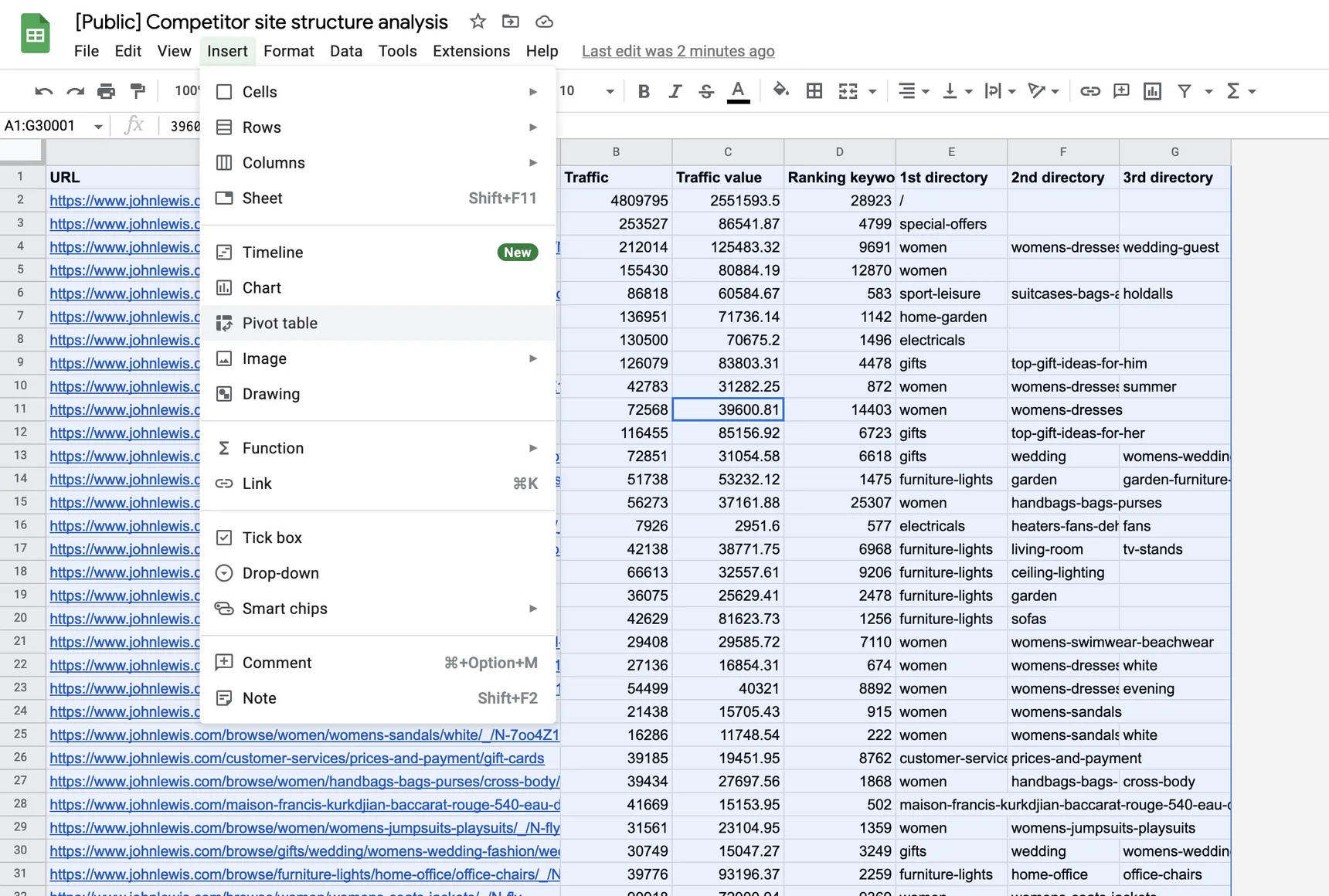
Next, configure your pivot table like the one below. I’ve only added directories 1 and 2 to the rows area, but you can also add 3 if you’d like data on that.
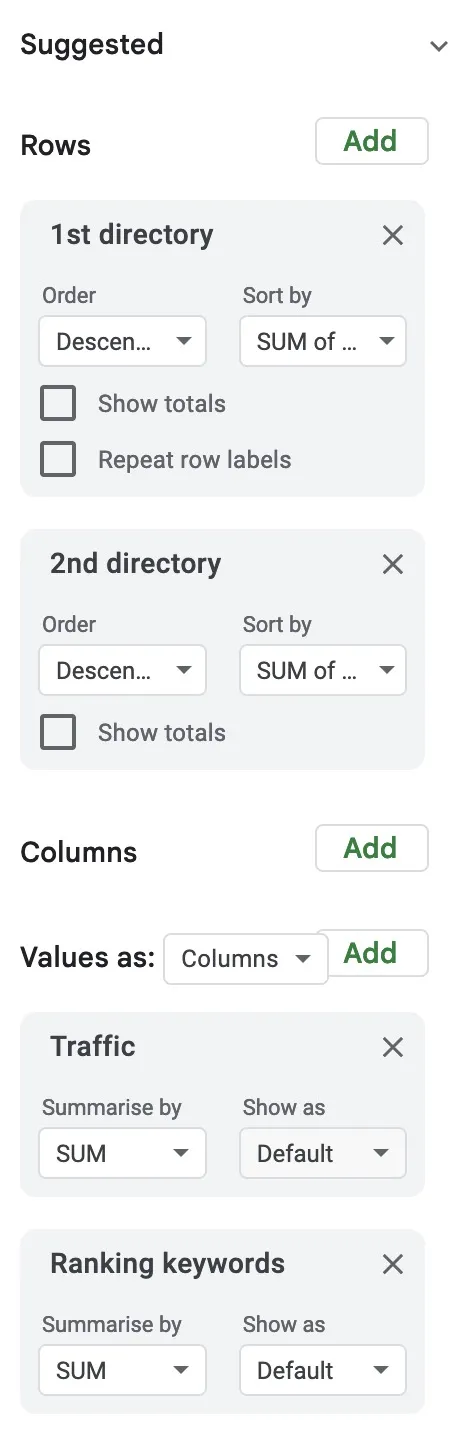
Your pivot table should now show you the total traffic and ranking keywords based on each directory within the URL. What’s particularly nice about this is you can expand the 1st directory to break the data down based on the second directory. If you’d gone for the breadcrumb approach, you could do the same with each level of the breadcrumbs.
The video couldn't load. Download it instead.
Use this data to answer questions such as:
- What sections of competitors’ sites drive the most traffic?
- Where do they have a competitive advantage over us?
- What gaps are there in our content strategy?
Delve deeply into the data, and you’ll be amazed at the insights you uncover.
Final words
You now possess some unique data about a competitor’s website. But don’t copy them blindly; evaluate their site, gain knowledge from it, and think of ways to improve your strategy.
Have a unique way you’re gathering data for site structure? Tweet me!